Technical Support

Request
and updating
Warranty
Frequently Asked Questions
An error appears at the start of the examination. What to do?
The device should be properly recognized in the Windows Device Manager in order to work with the software. It should not be marked by any error signs, exclamation marks, etc. If the device is displayed correctly but the errors continue to appear, try connecting the device to a different USB port on your computer or try the device with a different computer. Avoid using any third-party USB extension cables or hubs.
There is a problem with the database. How to solve it?
How to remove/reduce noise or interference in a recording?
Make sure that powerful medical devices (CTs, MRIs, X-rays, etc.) are not placed next door. Try recording in another room or when connected to a different power outlet. If the noise disappears, the problem is likely related to the electrical supply network. You can also try recording on a laptop powered by a battery (without connecting the charger) — this will completely eliminate the interference caused by the power outlets.
How can I find the serial number of the device?
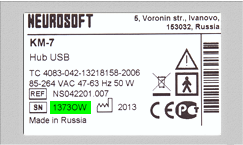
The serial number can be found on a silver sticker on the back of the device or in the battery compartment. It consists of 8 digits or 4 digits and 2 letters (for example, 12345678 or 1234AB).
Didn't find the answer to your question?
System requirements
If you already have a computer or want to purchase one yourself, it must meet the following minimum requirements:
- For running software based on Microsoft .NET technology: an Intel Core i5 processor of the latest generation or an equivalent in terms of performance, and at least 8 GB of RAM.
- Please note that computers with Qualcomm processors running Windows 11 (ARM64 architecture) are not compatible with our equipment connected via USB. For stable operation of our company's products, it is recommended to use computers with the traditional x86/x64 architecture (Intel or AMD processors).
- Windows 8.1 and higher.
- The computer must have a sufficient number of USB ports for connecting the equipment.
- The computer must be properly grounded using the third contact of a European-style power socket. It is not permitted to switch on the computer via an adapter that isolates the third wire.
- When supplying a PC to the user, the initial startup must be performed and, if required, Windows must be activated. It is also necessary to make sure that all peripheral equipment (video card, printer) has drivers and is ready for operation.
- When supplying a laptop, a mouse must be included in the delivery set.